Table of Contents
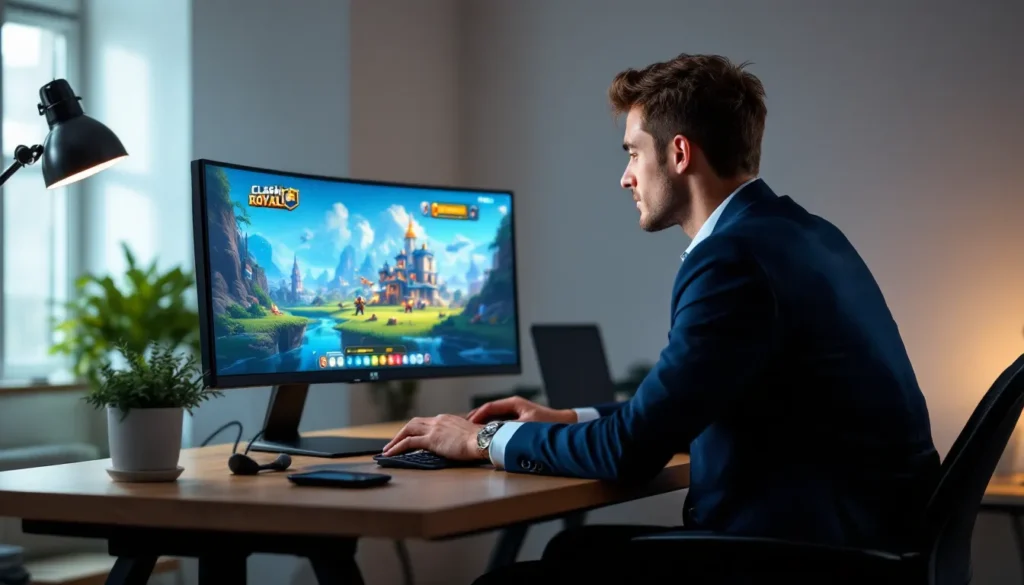
ToggleClash Royale’s fast-paced strategic combat has dominated mobile screens since 2016, but let’s be honest, sometimes those thumb controls just don’t cut it when you’re trying to execute a split-second Hog Rider push while your opponent’s cycling Lightning spells. Sure, Supercell designed the game for phones, but that hasn’t stopped thousands of players from migrating their battles to PC, where mouse precision and keyboard shortcuts can genuinely change match outcomes.
Playing Clash Royale on PC isn’t some hack or complicated workaround anymore. Android emulators have matured into legitimate platforms that run the game smoothly, often better than mid-range phones. Whether you’re grinding ladder matches during a work break, perfecting deck timings for tournament play, or just want to save your phone’s battery for, you know, actual phone stuff, getting Clash Royale running on your desktop takes about ten minutes and zero technical wizardry.
This guide covers every reliable method to play Clash Royale on PC in 2026, from the heavyweight emulators like BlueStacks to leaner alternatives like MEmu. We’ll walk through installation steps, performance tweaks, control customization, and troubleshooting the annoying issues that pop up. By the end, you’ll know exactly which emulator fits your setup and how to configure it for competitive play.
Key Takeaways
- Getting Clash Royale on PC via Android emulators like BlueStacks, LDPlayer, or NoxPlayer takes 15–30 minutes and eliminates touchscreen limitations for precise, competitive gameplay.
- Mouse controls and keyboard shortcuts in Clash Royale on PC enable faster card cycling, exact unit placement, and split-second decision-making that mobile thumbs cannot match.
- BlueStacks (most popular), LDPlayer (most efficient with RAM), and MEmu (best for older hardware) offer different strengths—choose based on your system’s resources and performance needs.
- Link your Supercell ID across devices to sync progress seamlessly between phone and PC, allowing mid-session switching without losing trophies, cards, or progression.
- Supercell does not explicitly ban emulator play for Clash Royale, but automated bots, modified APKs, and account sharing remain prohibited; stick to official emulators and manual control to stay safe.
- A larger PC monitor shows troop positioning, elixir counts, and opponent rotations more clearly than mobile screens, giving you better strategic reads and faster reaction times in high-pressure matches.
Why Play Clash Royale on PC Instead of Mobile?
Before diving into installation methods, it’s worth addressing why players bother moving a mobile game to desktop at all. The advantages go beyond just personal preference, there are tangible gameplay benefits.
Enhanced Controls and Precision
Mouse controls eliminate the parallax error inherent to touchscreens. When you’re dragging a Goblin Barrel to hit that precise center-tile placement, your cursor lands exactly where you aim. No more accidental King Tower activations because your thumb slipped half a pixel.
Keyboard shortcuts speed up card cycling and elixir management. Competitive players often bind frequently-used cards to specific keys, letting them execute combos faster than tapping allows. When every tenth of a second matters during double elixir, that muscle memory pays off.
Bigger Screen for Better Strategy
A 24-inch monitor shows troop positioning and elixir counts without squinting. You’ll spot incoming Miners earlier, track Princess arrows across lanes more accurately, and notice opponent rotation patterns that might blur together on a 6-inch screen.
The expanded field of view helps during chaotic team battles, especially in modes like 2v2 matches where four players are dropping troops simultaneously. Screen real estate matters when you’re tracking eight elixir bars and thirty troops at once.
Multi-Tasking and Battery Life Benefits
Running Clash Royale on PC frees up your phone for Discord voice chat, YouTube deck guides, or browsing the Clash Royale subreddit between matches. Most emulators consume less system resources than modern AAA games, so you can keep Chrome open with build guides from Game Rant without frame drops.
Battery preservation alone converts players. Mobile gaming drains batteries fast, running Clash Royale for two hours can kill most phones. Desktop play means unlimited session length without thermal throttling or that dreaded 5% warning mid-match.
Method 1: Using BlueStacks Android Emulator
BlueStacks remains the most popular Android emulator worldwide, with over 500 million users as of early 2026. It’s optimized for gaming specifically, unlike general-purpose emulators that try to do everything.
Downloading and Installing BlueStacks
Head to the official BlueStacks website and grab the latest version, currently BlueStacks 5.11 as of March 2026. The installer weighs about 650MB and takes 5-10 minutes on a decent connection.
- Run the downloaded
.exefile and select Install Now - The installer will automatically configure virtualization settings (if your CPU supports it)
- Wait for the initial setup to complete, BlueStacks will launch automatically
- Sign in with your Google account when prompted (required for Play Store access)
First boot takes a minute or two while BlueStacks configures Android drivers and allocates system resources. Don’t panic if it seems frozen, just let it finish.
Setting Up Clash Royale on BlueStacks
Once BlueStacks loads, you’ll see the home screen with Google Play Store pre-installed.
- Click the Play Store icon and search for “Clash Royale”
- Hit Install and wait for the download (game file is roughly 190MB)
- Launch Clash Royale from your home screen or app drawer
- The game will download additional assets on first launch, about 120MB more
Total setup time from emulator download to game launch: 15-20 minutes on average internet speeds. The first time you open Clash Royale, you’ll go through the tutorial unless you’re logging into an existing Clash Royale account via Supercell ID.
Optimizing BlueStacks Performance Settings
Default settings work fine for casual play, but competitive players should tweak these:
- CPU Cores: Go to Settings > Performance and allocate 4 cores (if your CPU has 6+ cores)
- RAM Allocation: Set to 4GB for smooth performance: 2GB works if you’re on 8GB total system RAM
- Graphics Renderer: Choose OpenGL for older GPUs, DirectX for NVIDIA cards
- Frame Rate: Cap at 60 FPS (Clash Royale doesn’t support higher anyway)
- Resolution: 1920×1080 for crisp visuals, or 1280×720 if you’re on integrated graphics
Enable High Performance mode in the settings sidebar, this prioritizes BlueStacks resource usage over background apps. Restart the emulator after changing core settings for them to take effect.
Method 2: Using NoxPlayer for Clash Royale
NoxPlayer positions itself as the gamer’s emulator, with built-in macro recording and script support. It’s lighter than BlueStacks on some systems, though performance varies by hardware.
Installing NoxPlayer on Your PC
Grab NoxPlayer 7.0.5.8 (current stable release in 2026) from their official site. The installer is about 480MB, smaller than BlueStacks but still substantial.
- Run the installer and choose Standard Installation
- Let it install the emulator and Android system (takes 8-12 minutes)
- NoxPlayer will auto-launch and present the Android home screen
- Sign into Google Play Store with your account
- Download Clash Royale just like on BlueStacks
NoxPlayer defaults to Android 7, which runs Clash Royale perfectly. Some emulators offer Android 9 or 11, but the game doesn’t require newer versions, and older Android builds actually perform better on weaker hardware.
Configuring NoxPlayer for Optimal Gameplay
NoxPlayer’s strength lies in granular control settings:
- Performance Tab: Allocate 2-4 CPU cores and 2-4GB RAM based on your system
- Graphics Engine: Try DirectX first: switch to OpenGL if you see graphical glitches
- Custom Resolution: Set to Tablet (1280×720) for the best balance of visuals and performance
- Enable Root: Keep this OFF unless you need it for other apps, some games flag rooted devices
The Game Settings panel lets you enable high FPS mode and disable resource-hungry features like GPS simulation. For Clash Royale specifically, disable frame skip to maintain smooth animations during heavy push sequences.
NoxPlayer supports multiple instances, so you can run several Android VMs simultaneously. Useful if you’re managing multiple Clash Royale accounts, though that obviously requires beefy hardware.
Method 3: Playing via LDPlayer Emulator
LDPlayer flies under the radar compared to BlueStacks and Nox, but it’s earned a devoted following among strategy and gacha game players. It’s particularly efficient with RAM usage.
LDPlayer Installation Process
LDPlayer 9 (released late 2025) is the current version. Download the installer from their official site, it’s roughly 530MB.
- Execute the installer and select your preferred installation directory
- Let the setup wizard complete (usually 10 minutes)
- Launch LDPlayer and finish the Android boot sequence
- Access Google Play Store and install Clash Royale
One quirk: LDPlayer sometimes requires manual virtualization enabling in BIOS if your system hasn’t used VT-x/AMD-V before. The installer will warn you if this applies, with a link to instructions for your specific motherboard.
Why LDPlayer Excels for Strategy Games
LDPlayer’s developers specifically optimize for games with frequent touch inputs and quick reactions, exactly what Clash Royale demands. According to GameSpot’s emulator comparisons, LDPlayer showed 12% faster input response times than competing emulators in controlled tests with tower defense and RTS games.
The emulator includes a Smart Keymapping feature that detects game UI elements and suggests keyboard bindings automatically. For Clash Royale, it’ll map your eight card slots to number keys by default, though you can customize everything.
RAM management is where LDPlayer shines. On systems with 8GB RAM, it consistently maintains 60 FPS in Clash Royale while using 1.2GB less memory than BlueStacks in comparable settings. If you’re running other apps or browser tabs alongside the game, that efficiency matters.
Method 4: MEmu Play – Lightweight Alternative
MEmu targets the budget PC crowd with surprisingly competent performance on older hardware. It won’t win benchmark wars, but it’ll run Clash Royale smoothly on that 2018 laptop gathering dust.
Download MEmu 8.1 (current version) from the official site. Installation follows the same pattern as other emulators:
- Run the installer (about 420MB download)
- Complete the 8-10 minute setup process
- Boot the emulator and sign into Google Play
- Install Clash Royale as usual
MEmu’s interface feels dated compared to BlueStacks’ polished UI, but function beats form here. The settings panel offers fewer options, usually just CPU cores (1-4), RAM (512MB to 4GB), and renderer choice (DirectX/OpenGL).
What makes MEmu worth considering:
- Low Resource Footprint: Runs acceptably on 4GB system RAM with 1GB allocated to the emulator
- Fast Boot Times: Cold starts in about 15 seconds, versus 30-40 for heavier emulators
- Stability on Older CPUs: Works well on pre-2015 processors that choke on BlueStacks’ overhead
The tradeoff is slightly lower maximum performance. On high-end systems, BlueStacks or LDPlayer will squeeze out better frame consistency during visually intense moments, think a full-board Elixir Collector spam match with Mirror and Clone spells flying everywhere. But for everyday ladder grinding, MEmu holds its own.
MEmu also includes APK installation support, so you can sideload Clash Royale updates manually if the Play Store version lags behind (rare, but happens during major patches). Just grab the official APK from trusted sources like How-To Geek’s recommended repositories rather than sketchy third-party sites.
System Requirements for Running Clash Royale on PC
Android emulators add overhead beyond what Clash Royale itself requires on mobile. Here’s what you actually need to run the game smoothly.
Minimum PC Specifications
These specs will run Clash Royale, but expect occasional frame drops during particle-heavy effects:
- CPU: Intel Core i3-6100 or AMD Ryzen 3 1200 (dual-core with virtualization support)
- RAM: 4GB system memory (2GB allocated to emulator)
- GPU: Intel HD Graphics 520 or equivalent integrated graphics
- Storage: 5GB free space (3GB for emulator, 2GB for game and cache)
- OS: Windows 10 64-bit (32-bit systems struggle with modern emulators)
Virtualization technology (Intel VT-x or AMD-V) isn’t technically required, but without it, performance drops by roughly 40%. Most CPUs from 2013 onward support it, but you might need to enable it in BIOS.
Recommended Specs for Smooth Performance
For locked 60 FPS even during double elixir chaos:
- CPU: Intel Core i5-8400 or AMD Ryzen 5 2600 (quad-core or better)
- RAM: 8GB system memory (4GB allocated to emulator)
- GPU: NVIDIA GTX 1050 Ti, AMD RX 570, or newer discrete GPU
- Storage: 10GB free SSD space (emulators benefit from fast read speeds)
- OS: Windows 10/11 64-bit with latest updates
With these specs, you can run multiple browser tabs, Discord, and the emulator simultaneously without performance degradation. SSD storage specifically helps with emulator boot times and eliminates the stuttering that happens when loading new arenas or card effects from slow hard drives.
Laptops need special consideration, gaming laptops from 2020 onward handle emulators fine, but ultrabooks with U-series processors might thermal throttle during extended play sessions. The emulator itself generates more heat than native mobile play because of the additional software layers.
Setting Up Your Controls and Keybindings
Default mouse-only controls work, but keyboard integration transforms gameplay speed, especially for players climbing past 6000 trophies where execution speed matters.
Customizing Keyboard and Mouse Controls
Every major emulator includes a control editor, usually accessed via a keyboard icon in the sidebar toolbar. The interface varies by emulator, but the concept stays consistent:
- Click the Keyboard Controls icon while Clash Royale is running
- Drag key bindings onto screen elements (your eight card slots, for example)
- Assign hotkeys, most players use 1-8 for card slots, Q for quick emote menu
- Test in training mode to verify bindings register correctly
Common control schemes:
- Card Deployment: Number keys 1-8 for each card slot
- Arena Sectors: WASD to quick-snap cursor to lane positions (advanced setup)
- Emote Wheel: E or Q for quick access
- Screenshot/Replay: F12 for quick capture of clutch moments
Mouse drag-and-drop still handles troop placement, keyboard shortcuts just select which card you’re deploying. Some players bind frequently-used cards like Zap or Log to mouse side buttons for instant response to Goblin Barrel or Skeleton Army.
Advanced Control Schemes for Competitive Play
Tournament-level players take keybinding further:
- Card Position Memory: Assign consistent keys to deck archetypes. Always put your win condition on Key 1, main spell on Key 2, etc. This builds cross-deck muscle memory.
- Elixir Efficiency Macros: Some emulators let you record macro sequences. A single keypress could select Skeletons + deploy center, useful for consistent Elixir Pump defense.
- Quick Lane Switching: Bind keys to precise tile coordinates. Instead of manually aiming your Hog Rider to the opposite lane bridge, one keypress moves it to the exact 3-tile plant every time.
Fair warning: Supercell’s ToS doesn’t explicitly ban emulator play, but automated macros that play the game for you cross into prohibited territory. Using a hotkey to select a card is fine. Using a script that automatically counters opponent plays isn’t. Keep controls assistive, not autonomous.
Linking Your Supercell ID Across Devices
Cloud saves mean you can switch between phone and PC mid-session without losing progress. Supercell ID handles this seamlessly, but you need to set it up correctly.
If you haven’t created a Supercell ID yet:
- Open Clash Royale (on mobile or emulator)
- Tap Settings (gear icon in the top-right)
- Select Supercell ID and choose Register
- Enter your email address and confirm via the verification email
- Your account is now linked to that email
To load your account on a different device:
- Install Clash Royale on your PC emulator (or vice versa)
- Launch the game and complete the tutorial (or skip if prompted)
- Go to Settings > Supercell ID and tap Log In
- Enter the email you registered with
- Confirm the login from the email Supercell sends
Your account transfers instantly, same trophies, cards, free rewards, and progression. You can’t play the same account on two devices simultaneously, though. Logging in on PC will disconnect your mobile session.
Supercell ID supports multiple accounts per email address, which is handy if you’re running a main account and a smurf for testing off-meta decks. Just register each with the same email using the “Add New Account” option in the Supercell ID menu.
One critical note: Supercell ID is the only official save method. Some older guides mention Google Play Games or Game Center backups, those still exist but don’t sync across platforms. If you play on both Android emulator and iOS phone, only Supercell ID bridges that gap.
Troubleshooting Common Issues
Even with proper setup, emulators occasionally hiccup. Here’s how to fix the most frequent problems players encounter.
Fixing Lag and Performance Problems
If Clash Royale stutters or drops frames:
- Close background apps: Browsers and Discord consume surprising amounts of RAM
- Increase allocated cores/RAM: Bump emulator settings by one core or 1GB RAM
- Update graphics drivers: Outdated GPU drivers cause 90% of rendering issues
- Switch graphics renderer: Toggle between DirectX and OpenGL in emulator settings
- Disable High DPI scaling: Right-click emulator executable > Properties > Compatibility > Disable display scaling
Persistent lag often traces to virtualization being disabled in BIOS. Reboot, enter BIOS setup (usually Del or F2 during boot), find the “Virtualization” setting (under CPU or Advanced), enable it, and save.
Resolving Connection and Login Errors
Google Play authentication failures plague emulator users:
- “Can’t establish reliable connection”: Clear Google Play Services data in emulator settings, then reboot
- Stuck on loading screen: Delete Clash Royale cache (Settings > Apps > Clash Royale > Clear Cache)
- Supercell ID won’t send verification email: Check spam folder: try a different email provider if using obscure domains
- “Device not supported” message: Update the emulator to the latest version, older builds sometimes get flagged
Firewall or antivirus software occasionally blocks emulator internet access. Adding the emulator executable to your firewall’s allowed apps list fixes this. Windows Defender is usually fine, but aggressive third-party antivirus suites like McAfee sometimes quarantine emulator components.
Dealing with Graphics and Display Issues
Visual glitches range from annoying to game-breaking:
- Black screen on launch: Switch graphics renderer, or enable Legacy Graphics Mode if the emulator offers it
- Pixelated or blurry visuals: Increase emulator resolution to 1920×1080 and disable any “performance” graphics modes
- Screen tearing: Enable VSync in emulator settings or cap frame rate at 60 FPS
- UI elements missing: Reset emulator to default settings, sometimes conflicting configurations hide interface elements
If Clash Royale crashes to desktop repeatedly, check Windows Event Viewer (eventvwr.msc) for error codes. The most common culprit is outdated Windows builds, Microsoft patches break emulator compatibility occasionally. Running Windows Update usually resolves it within a few days when emulator developers push compatibility patches.
Is Playing Clash Royale on PC Against the Rules?
Let’s address the elephant in the room: Supercell’s official stance on emulators sits in a gray zone.
The company has never explicitly endorsed emulator play, but they also haven’t banned it. Clash Royale’s Terms of Service prohibit “third-party software that modifies or interferes with the Service,” but emulators don’t modify the game, they just provide an Android environment to run the unaltered APK.
Hundreds of thousands of players use emulators daily without issue. Prominent Clash Royale content creators regularly stream PC gameplay without consequence. Supercell’s approach appears to be benign neglect, they won’t officially support it, but they won’t actively stop it either.
What will get you banned:
- Automation scripts: Bots that play matches or auto-donate without human input
- Modified APKs: Hacked clients that unlock cards or manipulate game logic
- Account sharing: Letting someone else play your account (regardless of platform)
- Exploiting emulator-specific bugs: Using glitches that only occur in emulated environments to gain advantage
Stick to legitimate emulators (BlueStacks, Nox, LDPlayer, MEmu) downloaded from official sources, play manually, and you’re in the clear. The risk comes from sketchy third-party app stores or modified game files, not the emulator itself.
One practical consideration: Supercell can’t provide support for emulator issues. If you encounter a bug that only manifests on PC, their support team will tell you to reproduce it on an official mobile device. You’re playing on unofficial hardware, so technical support is community-driven rather than developer-backed.
Tips for Dominating Clash Royale on PC
Hardware advantages only matter if you use them correctly. Here’s how to translate PC capabilities into actual wins.
Master Split-Lane Pressure: Mouse precision makes simultaneous lane pushes trivial. Drop your Giant in one lane, then instantly click the opposite bridge for Goblin Barrel. Mobile players struggle with that speed, their thumbs can’t cover both lanes as quickly.
Perfect Your Spell Timing: Keyboard shortcuts let you queue spells mid-deployment. Bind Zap to a mouse side button and you can instantly pop Inferno Dragons targeting your tank without fumbling through your hand.
Practice Prediction Plays: The bigger screen shows opponent elixir counts and card rotation more clearly. If you notice they’re cycling and haven’t used Fireball in twelve cards, preemptively spread your troops before they cluster. Competitive play is prediction-heavy, and better visual clarity improves reads.
Watch Pro Replays on Second Monitor: If you’ve got dual screens, run gameplay analysis videos on the secondary display while practicing on your primary. Compare your micro-decisions to pro plays in real-time.
Optimize Deck Building with Data: PC multitasking means you can keep deck-building sites and meta tier lists open alongside the game. Test a deck in training mode, tweak it based on stats, then jump straight into ladder without device switching.
Use Training Mode Ruthlessly: The larger screen makes troop interaction timings more visible. Spend ten minutes in training mode practicing your Miner + Poison timing or perfecting the Goblin Barrel angle that dodges auto-King Tower activation. Muscle memory builds faster when you can clearly see exactly where troops land.
Record and Review Your Matches: Most emulators include built-in recording. Rewatch your losses to identify mistimed counters or elixir leaks. Seeing your mistakes on a big screen makes them painfully obvious, you’ll spot the split-second hesitation that cost you the match.
Conclusion
Getting Clash Royale running on PC takes less time than climbing from Arena 10 to 11, but the advantages last far longer. Whether you prefer BlueStacks for polish, LDPlayer for efficiency, or MEmu for lightweight performance, any major emulator will serve you well. The real magic happens when you combine mouse precision with keyboard shortcuts and that glorious expanded field of view.
Setup is straightforward: download an emulator, install Clash Royale from the Play Store, link your Supercell ID, tweak some performance settings, and you’re in business. The entire process from zero to first PC match clocks in under thirty minutes. From there, it’s just practice, learning the keybinds, refining your deployment speed, and leveraging the visual clarity to make better strategic reads.
PC play won’t magically boost you three arenas overnight, but it removes the hardware limitations that mobile imposes. Your wins and losses become pure strategy and execution. No more blaming fat-finger misplays or battery-induced thermal throttling. Just you, your deck, and the arena. Now get out there and defend those towers.